
Storyboard vs Director mode
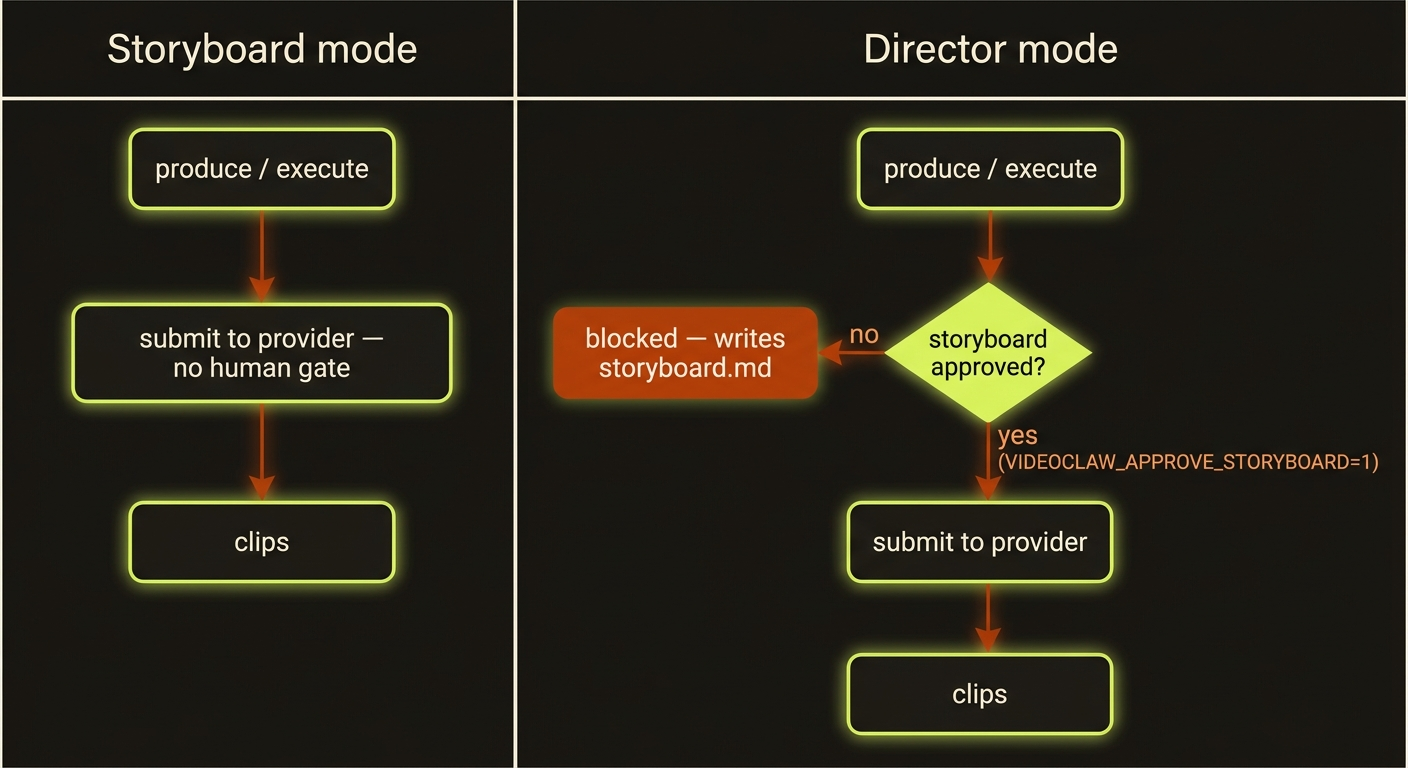
Diagram source (live Mermaid)
Every videoclaw command takes a --mode flag with two choices: storyboard or director. The mode does not change what your video is about. It changes how careful the tool is before it spends real money calling a video provider.
Why this matters: real video generation costs credits and takes time. Sometimes a prompt contains a phrase that a provider will reject, or a character description that drifts. Director mode catches those problems before you pay for them, and it makes you say "yes, go ahead" out loud. Storyboard mode trusts you and runs straight through. Pick the one that fits how much you want to be in the loop.
Which command form do I type?
This guide uses the source-checkout form node dist/cli/vclaw.js video .... If you installed videoclaw as a package, you can drop the long prefix and just type vclaw video .... Everything after video is identical either way. See install if you are not sure which you have.
The two modes in one breath
Storyboard mode | Director mode | |
|---|---|---|
| Speed | Fast — runs straight through | Adds two safety steps before submission |
| Preflight | None | Scans for content / reference / pronoun hazards |
| Approval gate | None | Blocks until produce --approve |
| Review file | Optional | Auto-writes a human-readable storyboard.md |
| Best for | Drafts, experiments, just show me something | Paid runs, client work, anything you must not get wrong |
The underlying lifecycle is the same either way: init → brief → storyboard → assets → review → publish. Director mode simply inserts a preflight and an approval gate in the runtime layer (readiness, plan, produce/execute) that sits between assets and review. For the full lifecycle, see how it works.
How to pick a mode
You set the mode with --mode on any command. Many people set it once at project creation (init) and keep using the same mode for every later step.
node dist/cli/vclaw.js video init my-first-video --mode storyboardCreates a project that runs straight through with no approval gate. Output: a new projects/my-first-video/ folder and a JSON confirmation printed to your screen.
node dist/cli/vclaw.js video init client-promo --mode directorCreates a project that will require preflight + your approval before it spends credits. Output: a new projects/client-promo/ folder and a JSON confirmation.
Be consistent
Use the same --mode on the later commands (brief, storyboard, produce, etc.) that you used on init. The mode decides whether the approval gate applies, so mixing modes mid-project is confusing. When in doubt, pass --mode director everywhere for safety.
Storyboard mode: fast and trusting
In storyboard mode there is no gate. When you run produce (alias of execute), it goes straight to the provider.
node dist/cli/vclaw.js video produce --project my-first-video --mode storyboard --dry-runPlans the whole run without spending a single credit — great for a sanity check. Output: a JSON execution plan showing the scenes and the provider route it would use.
node dist/cli/vclaw.js video produce --project my-first-video --mode storyboardActually submits the job to your provider and starts generating. Output: a JSON execution report with job IDs you can track using execute-status.
Always dry-run first
--dry-run is free and works in either mode. Run it before any real submission to confirm the plan looks right and that your provider route is ready. See providers to set one up.
Director mode: preflight + the approval gate
Director mode adds two things on top of storyboard mode.
1. The preflight (a safety scan)
Before anything is submitted, director mode scans your storyboard for common problems:
- content-hazard phrases a provider is likely to reject
- broken or missing reference images / character IDs
- pronoun drift (a character described as "she" in one scene and "he" in the next)
- repeated adjacent-scene warnings, prompt-quality warnings, and dialogue-length warnings
You can run the preflight on its own to see the report at any time:
node dist/cli/vclaw.js video director-preflight --project client-promoRuns only the safety scan and prints its findings as JSON — nothing is submitted. Output: a list of warnings/errors (empty if everything looks clean).
node dist/cli/vclaw.js video director-preflight --project client-promo --apply-content-fixesRuns the scan and rewrites known provider-risk phrases for you, then re-checks. Output: the same report, plus an updated storyboard and a regenerated story bible.
2. The approval gate
After preflight, director mode stops and waits. It writes a human-readable review file and refuses to submit to the provider until you explicitly approve.
Where the review file appears:
projects/<slug>/storyboard.mdThis storyboard.md is plain text you can open and read. It includes a character-binding table (who appears, with any stored reference IDs and assets) and a cost estimate, so you can eyeball exactly what is about to be made and what it will cost.
If you try to produce without approving, the command gates (stops on purpose) rather than failing:
node dist/cli/vclaw.js video produce --project client-promo --mode directorIn director mode without approval, this writes/refreshes storyboard.md and stops before submission. Output: a message telling you the storyboard is awaiting approval — no credits spent.
Open storyboard.md, read it, and when you are happy, approve it on the run itself:
node dist/cli/vclaw.js video produce --project client-promo --mode director --approveApproves the storyboard for this run and submits to the provider. Output: a JSON execution report with job IDs, exactly like storyboard mode — only now it happened on your say-so.
Stale approvals re-lock the gate
If the storyboard content changes after you approved it, the review goes "stale" and director mode blocks execute/execute-status again — even after you approved. Re-read the refreshed storyboard.md and re-approve. This is on purpose: you should never ship a video you have not actually looked at.
The env toggles, plain and simple
These are environment variables — values you set in front of a command to change its behaviour for that one run. In everyday use you need none of them: the approval is the --approve flag on produce. The first is its unattended form; the other two are escape hatches.
VIDEOCLAW_APPROVE_STORYBOARD=1— the same "yes, go ahead" asproduce --approve, set in the environment for an unattended or scripted run. Caution: this means real credits will be spent — only set it after readingstoryboard.md.DIRECTOR_AUTO_FIX_CONTENT=1— lets preflight automatically rewrite provider-risk phrases before it re-checks the storyboard. Caution: it edits your wording for you, so re-readstoryboard.mdafterwards to confirm the meaning is still what you wanted.SKIP_DIRECTOR_PREFLIGHT=1— skips the safety scan entirely and goes straight to the approval gate. Caution: use sparingly — you lose the hazard checks that exist to save you money and rejected jobs.
DIRECTOR_AUTO_FIX_CONTENT=1 node dist/cli/vclaw.js video director-preflight --project client-promoRuns the preflight and auto-rewrites risky phrases before re-checking. Output: a cleaned-up report, with the storyboard edited in place.
Use storyboard mode when… / use director mode when…
Use storyboard mode when:
- you are drafting, experimenting, or just want to see something quickly
- you are using a free/low-res draft route and do not mind retries
- you are confident in your prompts and want zero friction
Use director mode when:
- the run costs real credits and you do not want surprises
- it is client work, a final cut, or anything you must not get wrong
- you have characters whose look/identity must stay consistent
- you want a written
storyboard.mdto review (or hand to someone else) before spending
Not sure? Default to director.
Director mode is strictly safer: it never spends credits without your explicit approval, and the preflight only warns you about problems you can ignore if you choose. The only cost is two extra steps. For anyone learning the tool, that is a good trade.
Next step
Before any real run, you need a working provider route to submit to.
Next: Connect a provider · See also first video · review & publish · troubleshooting · cheat sheet.