
Keeping characters consistent
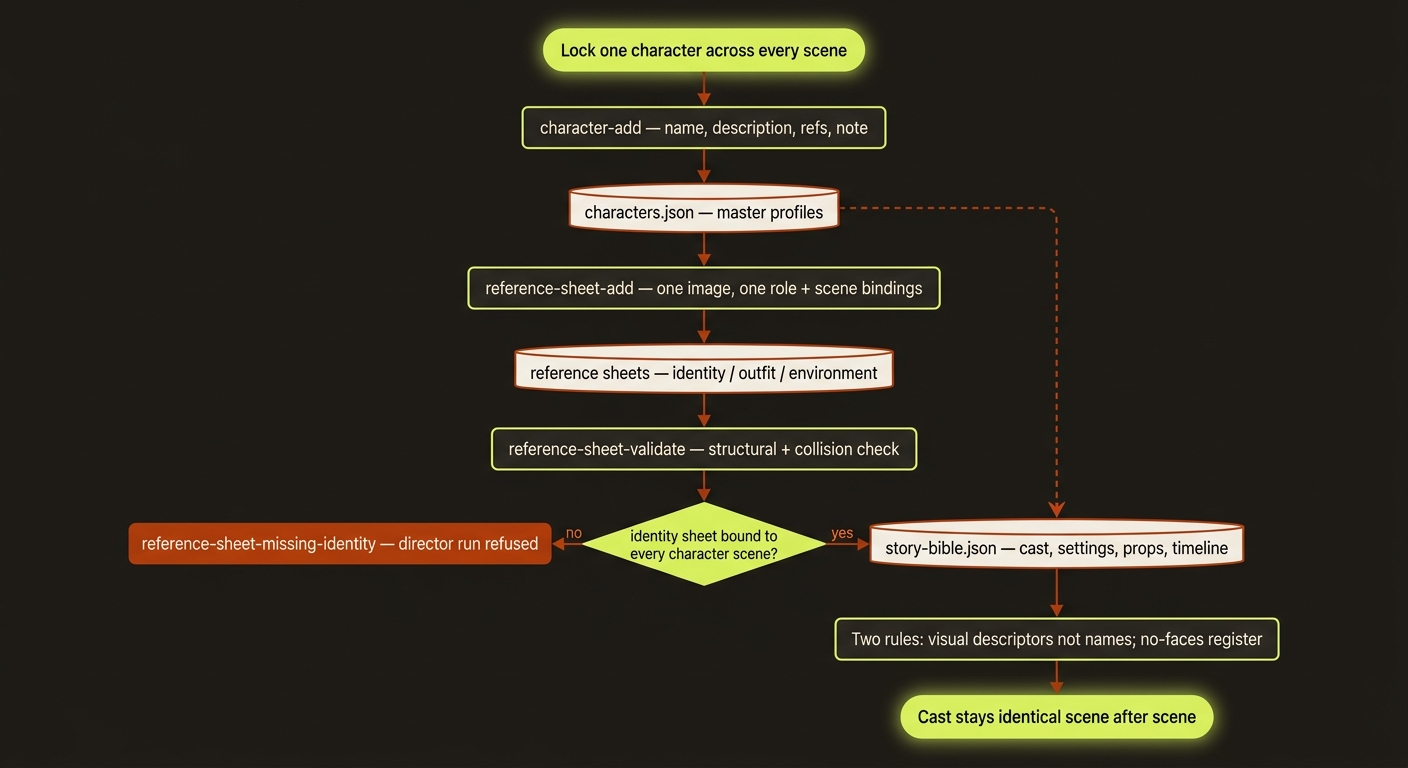
Diagram source (live Mermaid)
Here is the thing that breaks more AI videos than anything else: the same person looks like a different person in every scene. Their face shifts, their jacket changes colour, the kitchen they were standing in becomes a different kitchen. It feels random, but it is not — and videoclaw gives you three tools that, used together, keep one character (and their outfit, set, and props) the same from the first shot to the last.
This page explains all three in plain English, plus two hard-won rules that decide whether your characters survive at all.
A quick reminder on the commands below: this guide uses the source-checkout form
node dist/cli/vclaw.js video .... If you installed videoclaw as a package, you can drop that and just typevclaw video ...— the words aftervideoare identical either way.
Why this matters (read this first)
An AI video provider does not "remember" your character between clips. Each scene is generated more or less from scratch. So if you give it nothing to anchor to, it invents a fresh face every time. The fix is to hand the provider the same reference, the same description, and the same continuity notes on every scene. That is exactly what the three tools below do.
The three tools, in plain terms:
- Character profiles — a saved description of each person (name, look, voice, reference images), kept in one file.
- Reference sheets — typed, role-tagged images bound to specific scenes, so each image has exactly one job (this is the face, this is the outfit, this is the location).
- The story bible — an automatic continuity document that pulls the cast, settings, props, and a per-scene timeline into one place, rebuilt every time your storyboard changes.
Let's take them one at a time.
1. Character profiles (characters.json)
A character profile is a saved record of one person in your video: their name, a description, optional reference images, and notes. All profiles for a project live in one file at projects/<slug>/characters/characters.json. You never hand-edit that file — a command writes it for you.
Add a character like this:
node dist/cli/vclaw.js video character-add \
  --project demo \
  --name "Mochi" \
  --description "early-30s woman, short dark bob, charcoal denim jacket, calm expression" \
  --ref refs/mochi-front.png \
  --note "always wears the charcoal jacket"
This adds "Mochi" to projects/demo/characters/characters.json with that description, the reference image, and the note. It spends no credits and calls no providers. Output is a JSON block showing the saved profile.
See who is in your project:
node dist/cli/vclaw.js video character-list --project demoThis prints every character profile saved for the project as JSON — names, descriptions, and reference counts.
TIP
A profile is the master record of a character. The story bible (below) reads these profiles automatically, so getting the description right here pays off in every scene.
2. Reference sheets (one image, one job)
Profiles describe a character in words. Reference sheets pin them down with images — but with a strict rule: every reference has exactly one job. A reference sheet is not a folder of "whatever images look right." It is a typed collection where each image is tagged with a single role (this image is the face, this one is the outfit, this one is the location) and bound to specific scenes.
This is what stops "reference soup" — the failure where you throw 40 images at the provider, each doing three jobs, and it averages them into a blur nobody asked for.
There are five sheet types, each with its own allowed roles:
| Sheet type | What it locks | Example roles |
|---|---|---|
identity | who the character is | identity, wardrobe, silhouette |
outfit-material | clothing / product | outfit, material, product-hero, packaging |
environment | the set / location | location, set-dressing, weather, time-of-day |
motion-camera | how the camera moves | camera-behavior, blocking, shot-framing |
palette-mood | colour and lighting | palette, mood, lighting-reference |
To lock a character's face across the scenes they appear in, add an identity sheet and bind it to those scene numbers (scenes count from 0):
node dist/cli/vclaw.js video reference-sheet-add \
  --project demo \
  --type identity \
  --name "Lead identity" \
  --character-name "Mochi" \
  --ref refs/mochi-identity.png:identity:"primary face anchor" \
  --ref refs/mochi-wardrobe.png:wardrobe \
  --binding 0 --binding 1 --binding 2
This creates one identity sheet for Mochi (a face image plus a wardrobe image) bound to scenes 0, 1, and 2. Output is a JSON block with the new sheet and a summary count. The --character-name "Mochi" ties it back to the profile from step 1.
Always check your sheets before you spend anything:
node dist/cli/vclaw.js video reference-sheet-validate --project demoThis runs a structural + collision check and prints { "ok": true, ... } when everything is clean. If two sheets try to supply the same role on the same scene, it reports a collision and ok: false — fix it by un-binding one sheet from that scene.
Director mode enforces this
In director mode, a project will refuse to run any scene that has a character in it but no identity sheet bound to it. The error is reference-sheet-missing-identity, and it fires before any credits are spent. That is a feature: it stops you generating a whole video where the lead's face drifts. See modes for what director mode adds.
3. The story bible (built for you)
The story bible is one continuity document that lists your whole cast, your settings, your props, and a scene-by-scene timeline — with per-scene notes like "keep Mochi consistent" and "continue cleanly from the previous scene." It lives at projects/<slug>/artifacts/story-bible.json.
You never write it yourself. It is derived automatically from your brief + storyboard + character profiles every time your storyboard is written or rewritten (for example, by video create or video storyboard). Because it is rebuilt every time, it can never quietly fall out of sync with your scenes. It spends no credits and calls no providers.
What it gives every later stage:
- Cast consistency — one canonical name → description → voice → reference mapping, so every scene describes the same person.
- Set and prop continuity — the same kitchen and the same mug, described identically across scenes.
- A timeline — when each scene starts, ends, and how long the whole thing runs.
- Continuity notes — ready-made "keep X consistent" lines folded into generation.
Where does the data come from?
The cast is the union of character names mentioned across your storyboard scenes, names in your brief, and your registered character profiles. Descriptions and voices come from the matching profile first. Settings and props come from your brief. The timeline is computed from each scene's duration. Two runs over the same brief + storyboard produce a byte-identical bible (apart from the timestamp).
There is no command to "make" the bible — drive your storyboard and it appears. You'll see a storyBiblePath field in the storyboard command's JSON output pointing at it.
The two rules that decide everything
Profiles, sheets, and the bible only work if you also follow two rules learned the hard way in production. Skip these and your characters will still break.
Rule 1 — Describe characters by VISUAL DESCRIPTOR, not by name
AI providers do not carry your character's name between generations. Writing "Mochi walks into the room" tells the provider nothing about what Mochi looks like, so it invents someone new. Names do not survive across generations.
Instead, describe the person by what they look like, every time:
- Bad (name only):
Mochi enters the kitchen. - Good (visual descriptor):
An early-30s woman with a short dark bob and a charcoal denim jacket enters the kitchen.
The reference sheet's image is what actually locks the identity; the visual descriptor in the prompt is what keeps the provider pointed at the right person. The name is just a label for you and for matching profiles to scenes — it is not what the model anchors on.
Rule 2 — Some providers reject real human faces; use a stylized / no-faces register
Several providers (notably the Seedance / ARK route) run a content filter that rejects photoreal real-person faces when you pass them as reference images. A raw photo of a real face will be refused and won't lock identity even if it sneaks through. See providers for which routes this affects.
Two practical workarounds:
- Describe stylized characters by visual descriptor instead of feeding a photoreal face — this is Rule 1 doing double duty.
- For the storyboard-grid prompt path, use the no-faces register, which renders the grid in a silhouette / no-frontal-face style so it survives the filter:
node dist/cli/vclaw.js video filmmaking-prompts --project demo --no-facesThis renders the prompt packets in a silhouette / no-frontal-face register so the reference grid clears real-person content filters. Output is the usual filmmaking-prompts JSON, just with faces suppressed.
The proper way to lock a real-looking character on Seedance
For the official Seedance route, identity is locked through managed Asset Library avatars (Asset:// URIs), not raw photo URLs. You register character images once with video seedance-register-assets, and the runtime feeds those avatars in for you. That path clears the real-person filter and actually holds the character. Details are in providers.
How they work together
Think of it as a relay:
- Profiles hold the master description and reference images for each person.
- Reference sheets bind specific images, each with one job, to the exact scenes that need them — and gate director-mode runs so no character scene goes out un-anchored.
- The story bible rolls all of it into one continuity document, rebuilt automatically, that every later stage reads so the cast, set, and props stay identical.
- The two rules — visual descriptors over names, stylized/no-faces where the filter bites — keep the provider pointed at the right person on every single generation.
Do these and your lead stays your lead, scene after scene.
Next
Once your characters are locked, the next step is getting a human to sign off and shipping the result: Review & publish.
You may also want: how it works · modes · providers · first video · troubleshooting · cheat sheet