
How it works (the moving parts)
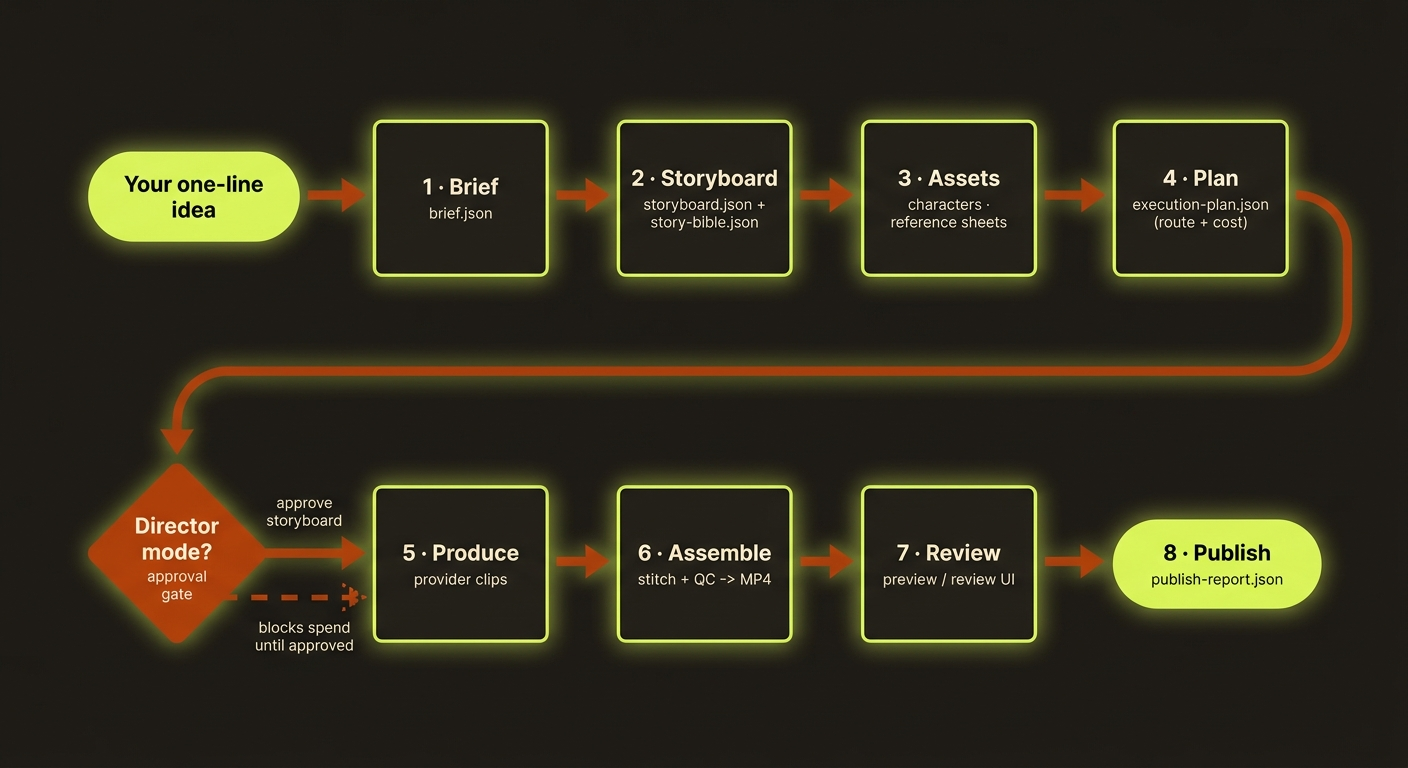
Diagram source (live Mermaid)
You don't need to be technical to understand videoclaw. It works like an assembly line: your one-line idea goes in one end, a finished video comes out the other, and at every station along the way the tool writes down exactly what it did in a plain file you can open and read.
This page explains the few moving parts behind that line — so when you run a command, you know where the work goes and why you can trust the result. None of this is hard. Read it once and the rest of the guide will click.
Where you are
New here? Start with install and your first video. This page is the "now I understand what's happening under the hood" page.
The project folder is the truth
Everything about one video lives in one folder on your computer: projects/<slug>/ (the <slug> is just a short nickname you pick for the project, like coffee-ad).
That folder is the project. The vclaw command is just a thin tool that reads and writes files inside it. Nothing important is hidden in a cloud, a database, or the tool's memory — if it matters, it's a file you can see.
node dist/cli/vclaw.js video init coffee-adCreates the project folder projects/coffee-ad/ with its starting files. You'll see JSON output confirming the new project and its location on disk.
Installed-package users
Everywhere in this guide we write the source-checkout form node dist/cli/vclaw.js video .... If you installed videoclaw as a package, you can drop that prefix and just write vclaw video ... instead. They do the exact same thing.
Stages, and the checkpoints that remember them
A project moves through a fixed line of stages, always in this order:
init → brief → storyboard → assets → review → publish
Between assets and review sits a small runtime layer that does the actual generating: readiness, plan (a.k.a. execution-plan), produce (a.k.a. execute), plus execute-status and execute-cancel to watch or stop a run. (plan/execution-plan and produce/execute are two names for the same thing — use whichever you like.)
Each stage does two things: it writes a file with its output, and it records that it finished in a checkpoint. A checkpoint is just a little note that says "this stage is done, here's what it produced." Because of those notes, you can stop, inspect, or rewind to any stage and try again — you never start over from scratch.
node dist/cli/vclaw.js video status --project coffee-adShows which stage the project is on and whether each checkpoint is done. Expect a JSON summary of the current stage plus a review-state line (more on that below).
Artifacts (the JSON files) and the events ledger
The files each stage writes are called artifacts. They live in projects/<slug>/artifacts/ and they're plain JSON — readable, machine-checkable, and the canonical source for everything downstream. The main ones:
| Artifact | Written by | What it holds |
|---|---|---|
brief.json | brief | Your idea, turned into a short written brief. |
storyboard.json | storyboard | The scene-by-scene plan. |
story-bible.json | storyboard | Auto-built continuity reference (see below). |
asset-manifest.json | assets | The list of generated stills/clips. |
execution-plan.json | plan | The exact request to send a provider. |
execution-report.json | produce | What the provider actually returned. |
review-report.json | review | The pass/fail verdict for the whole project. |
publish-report.json | publish | The final hand-off record. |
Alongside the artifacts, every meaningful action is appended to an events ledger at projects/<slug>/events/events.jsonl — one line per event, in the order they happened. Think of it as the project's diary: it never gets rewritten, only added to, so you always have an honest timeline of what occurred.
Two modes, at a glance
Every command takes --mode storyboard|director. (The high-level create/auto/iterate drivers also accept the synonym --production-mode; on the step-by-step lifecycle commands always use --mode.)
| Mode | What it does |
|---|---|
storyboard | Plans and produces straight through — good for quick drafts. |
director | Adds a safety check and waits for your "go" before spending money on a real render. |
In director mode, the tool runs a preflight check and then stops at a storyboard-approval gate. It will not submit anything to a paid provider until you explicitly approve by re-running produce with --approve. This is the "stop and check" button that keeps you from accidentally paying for a render you haven't looked at.
node dist/cli/vclaw.js video produce --project coffee-ad --mode director --dry-runRehearses the whole render without spending a credit (--dry-run plans only). Expect a JSON plan you can inspect; in director mode it will also tell you it's waiting for approval.
Full walkthrough: Storyboard vs Director.
The story bible (continuity, written for you)
Once your storyboard exists, videoclaw automatically writes a story bible at projects/<slug>/artifacts/story-bible.json. You never run a command for it — it appears whenever the storyboard is created or rewritten.
It's a single continuity reference: the cast (names → looks → voices), the settings, the props, and a scene-by-scene timeline, plus short notes like "keep this character consistent" and "continue cleanly from the last scene." That's what stops a character from looking like a different person in scene 5 than in scene 1.
It costs nothing — no credits, no providers. It's simply derived from your brief, storyboard, and character profiles, so it always matches your current storyboard. Read more: characters and the full story bible reference write-up linked from there.
Providers, and "no silent fallback"
The actual video clips are generated by an AI provider. videoclaw speaks to several through one consistent set of commands:
| Provider | Route name(s) |
|---|---|
| Veo (Google) | veo-useapi |
| Seedance | seedance-direct |
| Runway | runway-useapi |
| Dreamina | dreamina-useapi |
One rule matters most: if a provider route fails, videoclaw fails loudly. It will never quietly swap in a different provider and pretend it worked. That honesty is the whole point — you always know which engine made your video.
node dist/cli/vclaw.js video providersShows which provider routes are configured and ready. Expect a JSON readiness list so you can see what's good to go before you spend anything.
See providers for setup and trade-offs.
"Ready" means the review report says so
Here's the rule that keeps you honest about whether a project is truly finished: a project is ready to publish only when review-report.json says verdict: "pass" and metrics.publishReady: true. No guessing, no vibes — the file literally has to say it.
Along the way, status also tracks a review-state of missing, current, or stale. If you change the storyboard after it was approved, that approval goes stale and the tool blocks the render until you re-approve — so a stale "yes" can never sneak a render through.
node dist/cli/vclaw.js video review --project coffee-ad --verdict passThe simple artifact-stage approval, for projects that already have review evidence. For director image hand-offs, use the Review UI instead so publishReady is derived from your actual locked stills — covered in review & publish.
Putting it together
- The project folder is the single source of truth.
- Stages run in a fixed order; checkpoints let you rewind any of them.
- Artifacts are the readable JSON outputs; the events ledger is the diary.
- Modes decide whether there's a human "go" gate (use director for safety).
- The story bible keeps characters and sets consistent — for free.
- Providers never silently fall back; failures are loud.
- "Ready" is not an opinion — it's
verdict: "pass"in the review report.
Next
Storyboard vs Director → — the two modes, when to use each, and how the approval gate works.
Related: first video · characters · assemble · troubleshooting · cheat sheet
Planned films and current delivery evidence
A passing legacy review report is not sufficient for projects with an explicit film plan or film-edit review history. Record full playback with sound against the current export using video review --film-edit <source.json> --film-review <review.json> --verdict pass. Inspect the fingerprint first with --film-edit and no verdict. Changes to media, trims, order, soundtrack or edit intent require fresh review. See Review & publish and the shared filmmaking contract.